PlayerMadeQuests
Custom quest addon for WoW: Classic
Project maintained by runeberry Hosted on GitHub Pages — Theme by mattgraham
Save Data & Cache
The Save Data & Cache menu allows you to manage various pieces of save data that PMQ generates while you use the addon.
Overview
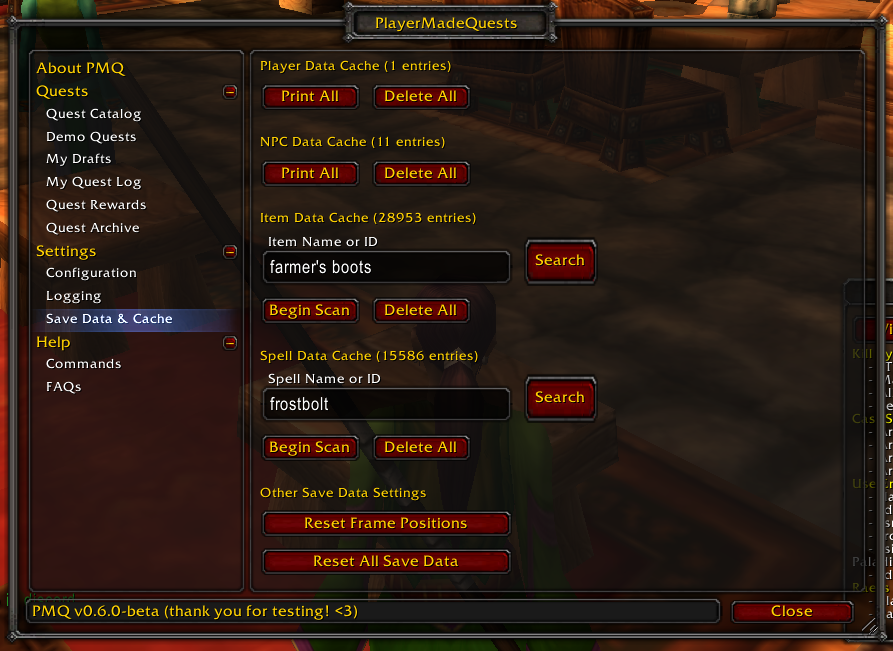
The Save Data & Cache menu screen
The World of Warcraft API is very selective about some of the information that it makes available to addons. Because of this, it’s difficult to answer some questions that PMQ needs to ask when determining whether or not the player has just completed a quest objective. For example, these questions cannot be answered strictly through the WoW API:
- You just killed a “Stonetusk Boar”. What level was it?
- You just cast Frostbolt on a player named “Questborther”. What guild were they in?
To work around this, PMQ caches, or stores a copy of, data about the game world whenever it becomes available through the API. This way, PMQ can take a “best guess” at answering questions like these anytime the addon needs to do so, such as during quest objective completion. PMQ might answer the above questions like this:
- You targeted a monster named “Stonetusk Boar” earlier, and it was Level 5.
- You grouped with a player named “Questborther” a couple of days ago, and they were in the guild
<Pals for Life>.
Cached data is shared across all characters on your Battle.net account.
Player Data Cache
PMQ caches data about other players whenever you target a player, mouseover a player, or join a party or raid group. Any player that you have “seen” in one of these ways should be an eligible target for quest objective completion. For example, in order to get credit for killing a level 30+ player, you must have targeted, moused over, or grouped with that player at some point, so PMQ can know what level they were before you killed them. With that in mind, there are some edge cases to watch out for:
- You may not get credit for kills made by other members in your party if you have never “seen” the target that they killed
- You may not get credit for kills or spellcasts performed with AOE spells, if you happen to have never moused over the target.
- Targets with level “??”/”Skull” may not count towards objectives with a level condition, because WoW does not make the target’s true level available to addons
If you think you should have gotten credit for a kill, try confirming the target’s info with Print All, and let us know in Discord if it’s not working like you’d expect.
Menu options:
- Print All: Prints all cached player data to your chat window, including the name, guild, faction, level, sex, and race for each player you’ve seen. If your cache is large, then you may not see all entries in the chat window.
- Delete All: Deletes all cached information about players that you’ve seen.
NPC Data Cache
PMQ caches data about NPCs whenever you target or mouseover them. The same rules that applies to Player data also apply to NPCs, with the exception that some data points are exclusive to players and unavailable (or not reliable) from NPCs (such as class, race, sex, or guild).
If you think you should have gotten credit for a kill, try confirming the target’s info with Print All, and let us know in Discord if it’s not working like you’d expect.
Menu options:
- Print All: Prints all cached NPC data to your chat window, including the name, faction, and level range for each NPC you’ve seen. If your cache is large, then you may not see all entries in the chat window.
- Delete All: Deletes all cached information about NPCs that you’ve seen.
Item Data Cache
Menu options:
- Search: Provide any item name or ID in the search field. If the item is found in your cache, it will be linked to you in the chat window.
- Begin Scan: Starts looking for valid item IDs from 1 to 184K, and caches any item information found with those IDs. This scan takes around 20-30 minutes and should find just under 30K items in TBC. You can let this run in the background while you play, but encountering any loading screen may interrupt the scan.
- Delete All: Deletes all item information in the cache. You’ll need to scan again to restore a full database of items.
Spell Data Cache
Menu options:
- Search: Provide any spell name or ID in the search field. If the spell is found in your cache, then the spell’s name and ID will printed in the chat window.
- Begin Scan: Starts looking for valid spell IDs from 1 to 50K, and caches any spell information found with those IDs. This scan takes around 2-3 minutes and should find around 15K spells in TBC. You can let this run in the background while you play, but encountering any loading screen may interrupt the scan.
- Delete All: Deletes all spell information in the cache. You’ll need to scan again to restore a full database of spells.
Other Menu Options
- Reset Frame Positions: This will delete the saved position of any popout menus within PMQ (such as the Quest Log or Location Finder). Menus should immediately return to their default positions when this is run. Click this if you ever lose a popout menu by accidentally dragging it off screen.
- Reset All Save Data: This will delete all of the save data managed by PMQ, including data caches, frame positions, as well as quest drafts and quest completions. Use this as an absolute last resort in case your PMQ save data gets somehow corrupted.